View our full Barn360 app guide here: Barn360 Mobile App Help Guide
Best Practices for Users:
-
-
Open the app every morning and keep it running in the background until you are done with work for the day. It's also okay to keep open in the background at all times!
-
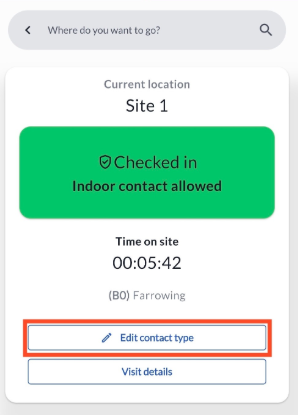
Before leaving any site or checking into the next site, be sure to review your last check in type and edit when necessary.
-
Check your next stop prior to arrival. If the app states that you will be in breach by going there, call the admin and/or site manager first.
-
FAQ/Troubleshooting
-
Barn360 doesn't show in the BarnTalk app for me, what should I do?
-
Confirm the BarnTalk app is up to date and you are signed in with the correct phone number. If Barn360 still doesn't show, please contact your Barn360 admin.

-
-
I arrived on site and it didn't automatically check me in.
-
Confirm location services are enabled
- iPhone:
- iPhone settings > Apps > BarnTalk > Location > Turn on Always and Precise Location
- Android:
-
Settings > Apps > BarnTalk > Permissions > Location > turn on Use Precise Location
-
Settings > Location > Location Services, and turn on Google Location Accuracy and Wi-Fi Scanning
-
- iPhone:
- Make sure the app is open and running in the background.
-
-
When checking into a site it says contact not allowed - but that's incorrect
-
Review the check-in type. Automatic check ins default to indoor contact. Use the app to update the type if needed. If the contact type is correct, contact your admin and/or the site manager to review BEFORE entering.
-